This guide covers how to use the Privacy API to create virtual cards, set spending limits, monitor transactions, and manage card state programmatically within an agentic workflow.
What You Need Before You Start
A Privacy account. API access is available to anyone on Privacy Plus ($5/month), Privacy Pro ($10/month), or Privacy Premium ($20/month). Sign up or upgrade at privacy.com/pricing.
Your API key. Once you're on a paid plan, generate your API key from your account page. This key authenticates all API requests.
API Basics
All requests go to https://api.privacy.com/v1/.
Authentication: Include your API key in the request header:
Authorization: api-key YOUR_API_KEY
Amounts are integers in the smallest currency unit (e.g., 1000 = $10.00 USD).
Instead of polling the Transactions endpoint, you can configure webhooks to receive real-time transaction data.
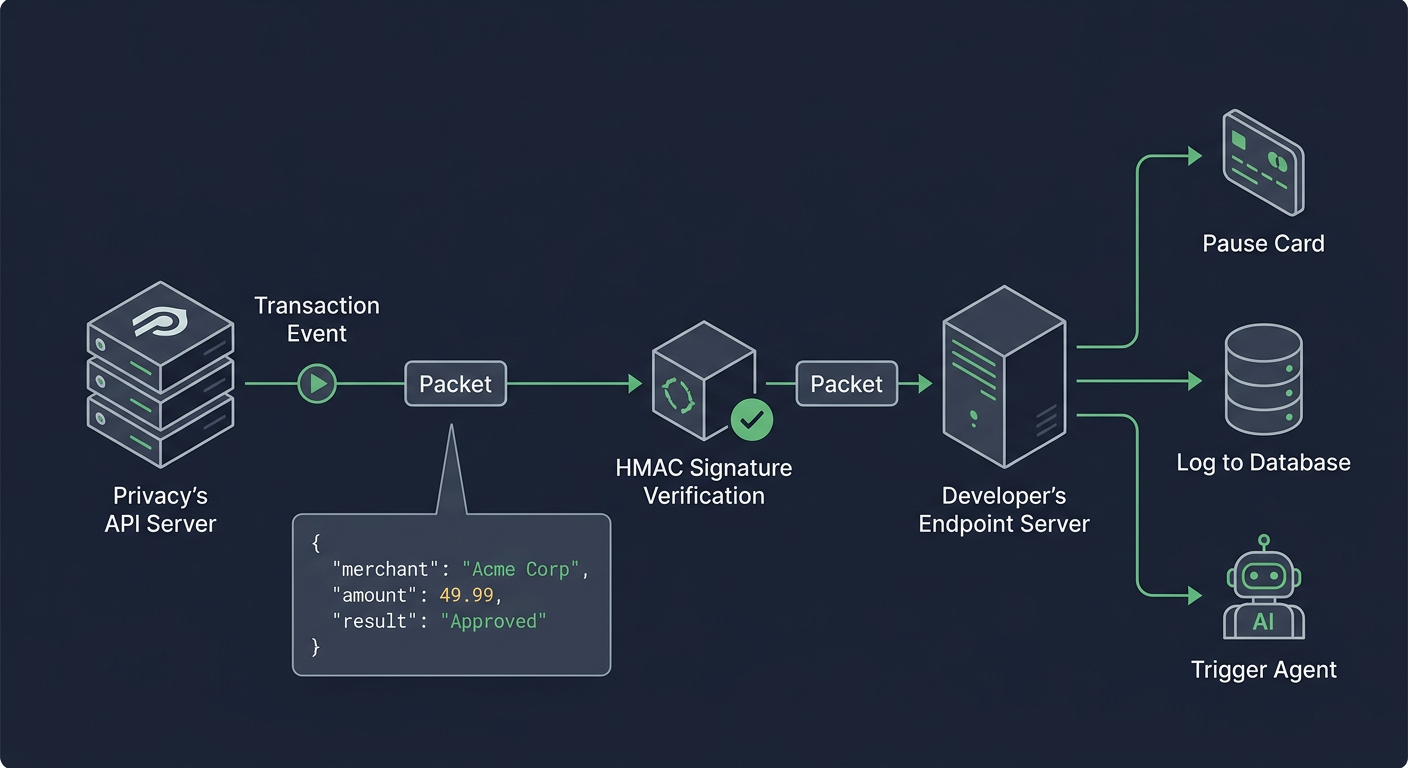
Set your webhook URL in your Privacy account settings. Once configured, Privacy will send an HTTP POST request to your endpoint with a Transaction object every time a transaction event occurs on any of your cards.
Webhooks are HMAC-verified, so you can confirm each notification actually came from Privacy. If your server is unavailable, Privacy retries with exponential backoff (doubling the wait time between attempts) for up to 24 hours.
Use cases for webhooks
Spend alerts: Trigger notifications when charges occur
Automated card controls: Pause a card programmatically if a transaction exceeds an expected threshold
Audit logging: Record every agent transaction with merchant details and timestamps
Agent feedback loops: Confirm a purchase succeeded before the agent proceeds to its next task
Putting It All Together: A Sample Agentic Workflow
Here's a typical integration flow. In this example, an agent needs to purchase a Perplexity AI subscription to gain search capabilities.
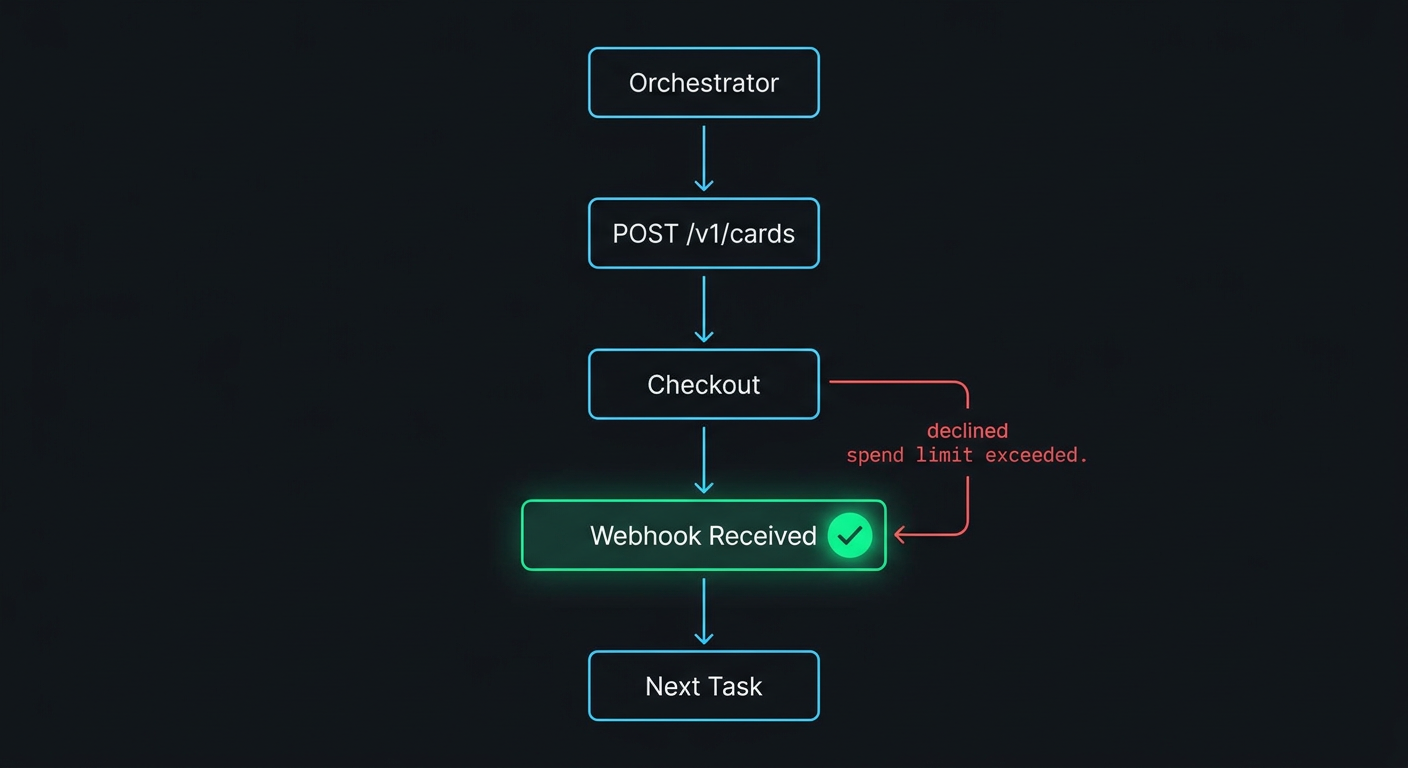
Create card. Orchestration layer calls POST /v1/cards to create a single-use card with a $20 limit.
Read card details. The API response includes pan, cvv, exp_month, and exp_year. The agent stores these temporarily.
Complete purchase. The agent navigates to Perplexity AI's checkout and enters the card details.
Webhook fires. Your server receives a webhook: $5.00 charged by PERPLEXITY AI, result APPROVED.
Card auto-closes. Single-Use Card closes after the first transaction. No further charges are possible.
Agent continues. With the subscription active, the agent proceeds to its next task.
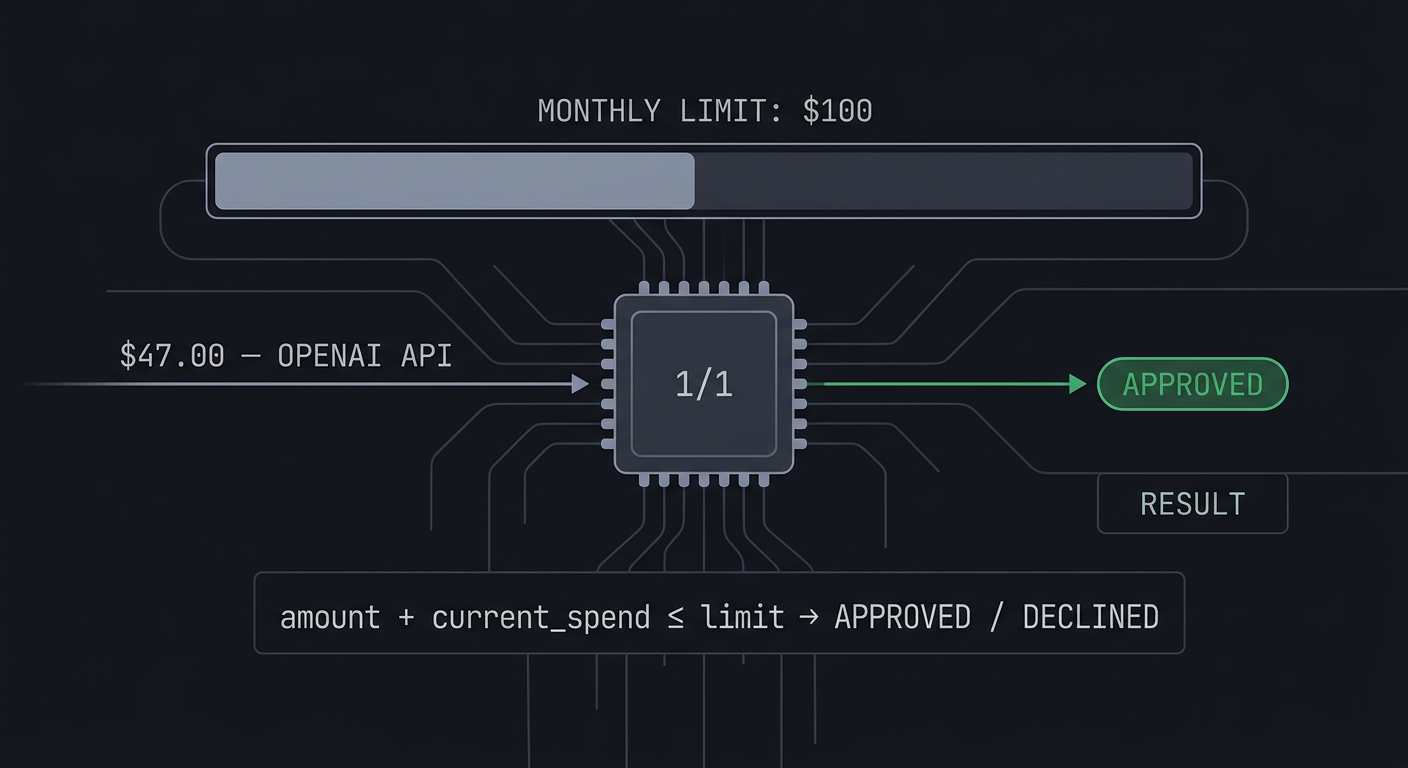
If the charge at step 3 exceeds the $20 limit, the transaction is declined. If the agent attempts to reuse the card, it's already closed.
Python Quick Reference
Most agent frameworks are Python-based. Here's a minimal wrapper around the Privacy API:
importrequestsPRIVACY_API_KEY = "your_api_key_here"BASE_URL = "https://api.privacy.com/v1"HEADERS = {
"Authorization": f"api-key {PRIVACY_API_KEY}",
"Content-Type": "application/json",
}
defcreate_card(card_type, memo, spend_limit_cents, duration="TRANSACTION"):
"""Create a virtual card and return the full card details."""resp = requests.post(f"{BASE_URL}/cards", headers=HEADERS, json={
"type": card_type,
"memo": memo,
"spend_limit": spend_limit_cents,
"spend_limit_duration": duration,
"state": "OPEN",
})
resp.raise_for_status()
return resp.json()
defpause_card(card_token):
"""Pause a card. All future transactions will be declined."""resp = requests.patch(f"{BASE_URL}/cards/{card_token}", headers=HEADERS, json={
"state": "PAUSED",
})
resp.raise_for_status()
return resp.json()
defclose_card(card_token):
"""Permanently close a card. This cannot be undone."""resp = requests.patch(f"{BASE_URL}/cards/{card_token}", headers=HEADERS, json={
"state": "CLOSED",
})
resp.raise_for_status()
return resp.json()
defget_transactions(card_token=None, result=None):
"""List transactions, optionally filtered by card or result."""params = {}
if card_token:
params["card_token"] = card_token
if result:
params["result"] = result
resp = requests.get(f"{BASE_URL}/transactions", headers=HEADERS, params=params)
resp.raise_for_status()
return resp.json()
# Example usage:# card = create_card("SINGLE_USE", "Agent - Perplexity", 2000)# print(f"Card number: {card['pan']}, CVV: {card['cvv']}, Exp: {card['exp_month']}/{card['exp_year']}")# ... agent uses card ...# transactions = get_transactions(card_token=card["token"])
Best Practices
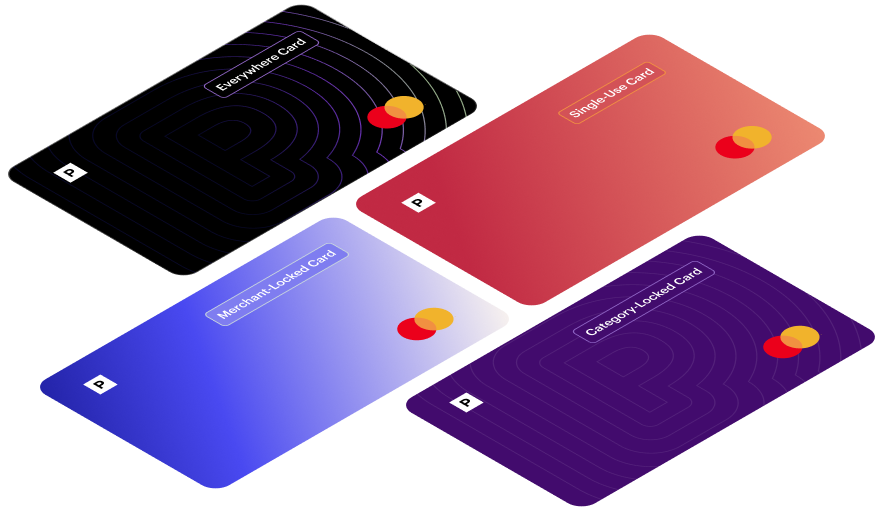
Single-Use Cards for one-off purchases. They close automatically after the first transaction, preventing repeat or unauthorized charges.
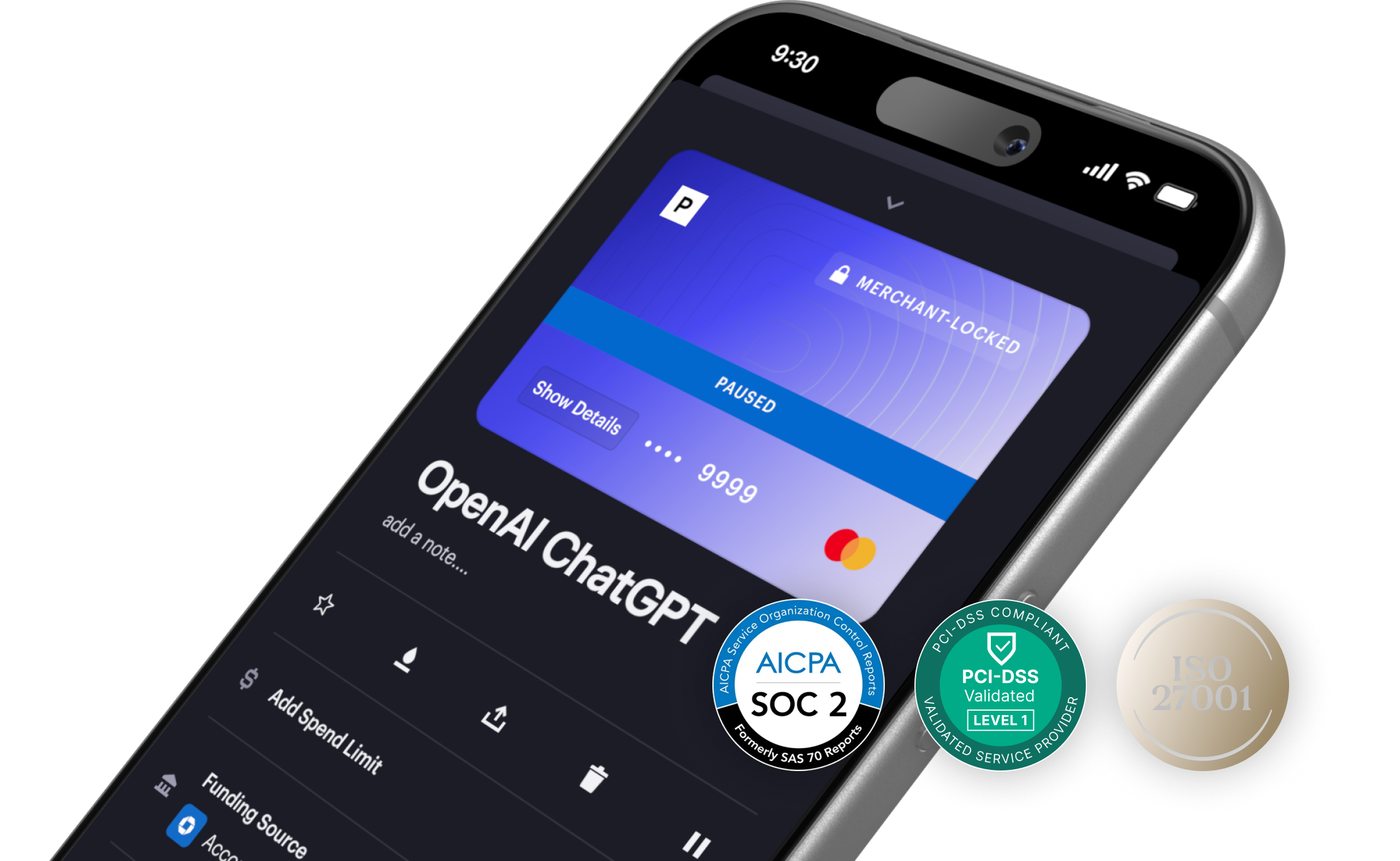
Merchant-Locked Cards for recurring billing. Only the original merchant can charge the card.
Tight spend limits. If you expect a $5 charge, set a limit close to that. Smaller limits reduce exposure.
Label cards with memo. Clear labels like "Agent - Anthropic API" or "Agent - domain purchase" make auditing straightforward.
Use webhooks over polling. Webhooks provide real-time transaction data without additional API calls.