How to Hide OnlyFans on Your Bank Statement

OnlyFans charges show up directly as "ONLYFANS.COM" on your bank or credit card statement, often with a letter suffix like "ONLYFANS.COM*A" or "ONLYFANS.COM*B." Some banks may also show "CCBill.com *OnlyFans." Either way, the name "OnlyFans" is clearly visible to anyone who looks at your statement. The most reliable way to hide OnlyFans on your bank statement is to use a Privacy virtual card with Private Spend Mode turned on.
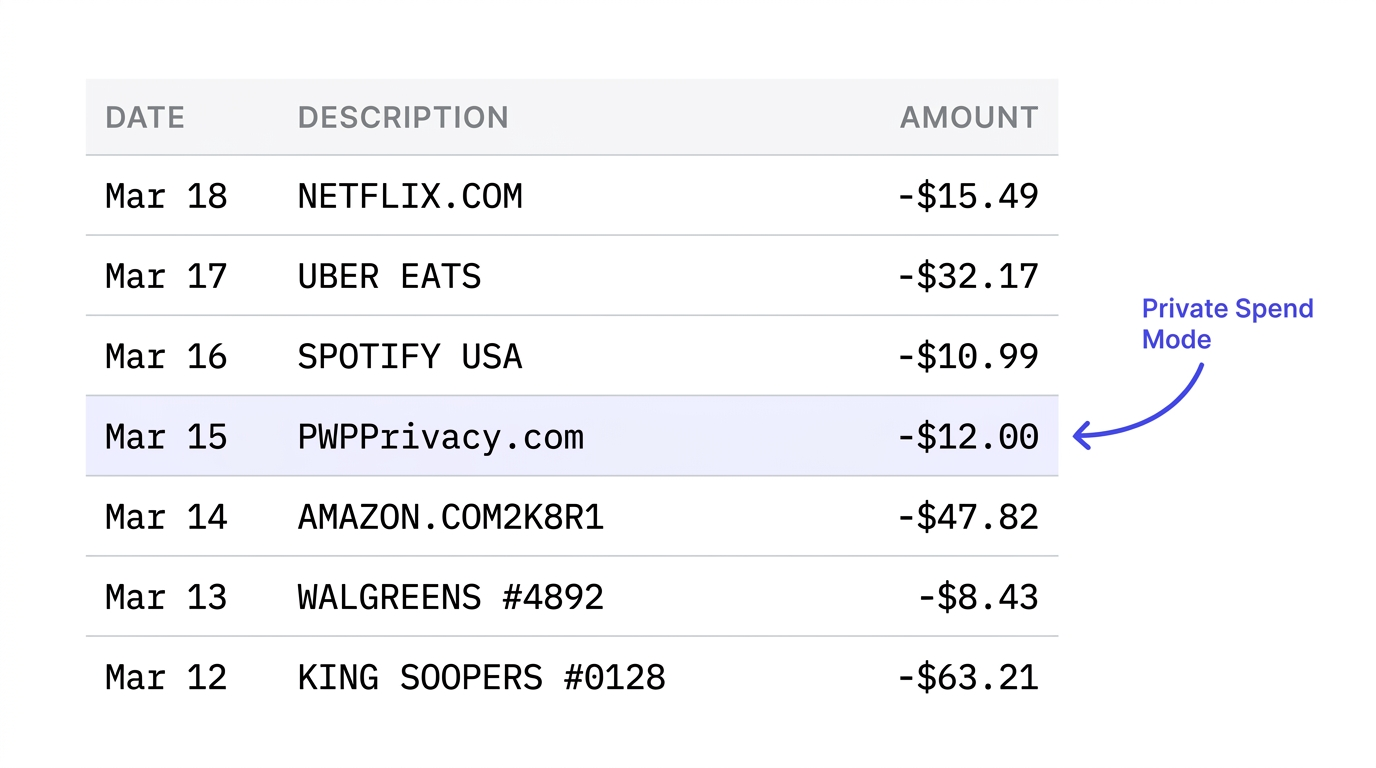
A Privacy virtual card routes the payment through Privacy so that the merchant doesn’t charge your bank account directly. But by default, Privacy still passes the merchant name through to your bank statement (it would appear as “PWP*ONLYFANS.COM”). However, when you enable Private Spend Mode, Privacy does not share the underlying merchant name. For OnlyFans transaction, your bank statement would only show "PWP*Privacy.com" with no reference to the actual merchant, OnlyFans.
This guide covers exactly what OnlyFans shows up as on your bank statement, why you can’t remove or rename transactions after the fact, and how to set up a Privacy virtual card with Private Spend Mode so that merchant names like "OnlyFans" are hidden from your bank statement.
What Does OnlyFans Show Up as on Your Bank Statement?
When you pay for an OnlyFans subscription or tip a creator, the charge on your bank statement shows "OnlyFans" by name. The most common descriptors are "ONLYFANS.COM*A," "ONLYFANS.COM*B," and "ONLYFANS.COM-G," though the exact suffix can vary. Some charges come through the payment processor CCBill and appear as "CCBill.com *OnlyFans." In all of these cases, the word "OnlyFans" is clearly visible on your statement.
In the past, OnlyFans used different billing descriptors. Older charges (around 2019–2024) sometimes appeared under individual creator usernames in the format "OF* [creatorname]", which exposed not just that you used OnlyFans but which specific creator you paid. For a brief period in late 2023, some charges appeared under "Fenix International Limited," the parent company name. Current charges use the "ONLYFANS.COM" format directly.
Common workarounds people try include using PayPal, Apple Pay, or Google Pay, which don’t necessarily help to hide the underlying merchant name. PayPal transactions still show "PAYPAL *ONLYFANS" on your statement, keeping the merchant name on your bank statement fully visible. On the other hand, Apple Pay and Google Pay pass through the original merchant name with no masking at all. That’s because these are payment methods, not privacy tools.
Can You Hide or Delete Transactions on Your Bank Statement?
No. Banks in the United States are legally required to maintain accurate transaction records. You cannot call your bank and ask them to remove a charge, rename a merchant, or hide transactions on your bank statement after the fact. This applies to any regulated financial institution, including major banks, credit unions, and fintech apps.
Some people try buying prepaid Visa gift cards as a workaround. A prepaid gift card does keep the charge off your bank statement since the merchant charges the gift card instead of your bank account. However, using a gift card introduces friction due to activation fees (typically $3–$6), limited balances, and no way to reload them.
The only way to prevent a specific merchant name from appearing on your bank statement is to use an intermediary between your bank account and the merchant. That’s what a Privacy virtual card with Private Spend Mode can help you achieve.
How Privacy’s Private Spend Mode Hides OnlyFans on Your Bank Statement
To understand how Private Spend Mode works, you should first learn about how Privacy handles payments.
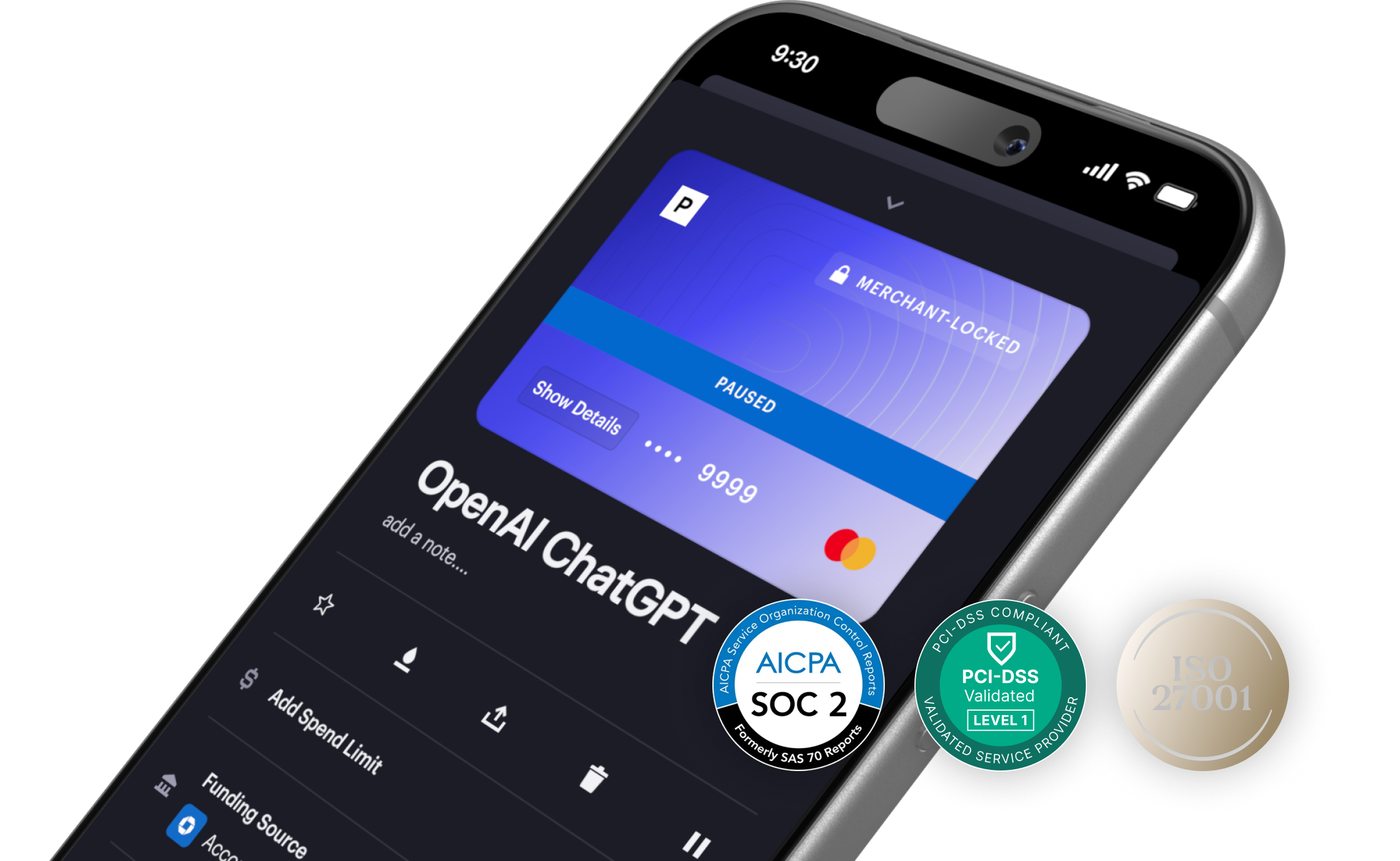
A virtual card from Privacy works like a regular credit card–it has a 16-digit number, expiration date, and CVV–but is used instead of your actual bank card. Depending on your Privacy plan, you can generate up to 60 unique virtual card numbers per month.
When you use a Privacy virtual card to pay a merchant, here’s what happens:
- You provide the merchant with your Privacy Card details at checkout. This works just like your regular credit or debit card.
- The merchant charges your Privacy virtual card. OnlyFans sees a standard card number and processes it like any other payment.
- At the same time, Privacy debits your connected bank account or debit card for the charge amount. Your bank gets a charge from Privacy, and never touches the merchant (OnlyFans) directly.
- By default, Privacy includes the merchant name in the bank statement descriptor. Without Private Spend Mode, your bank statement would show something like "PWP*ONLYFANS.COM", so the OnlyFans name is still clearly visible.
- With Private Spend Mode turned on, Privacy stops passing the merchant name to your bank. Your bank statement only shows "PWP*Privacy.com" for every transaction, regardless of which merchant you paid. The merchant-level detail only appears inside your Privacy account, which is protected by your own login.
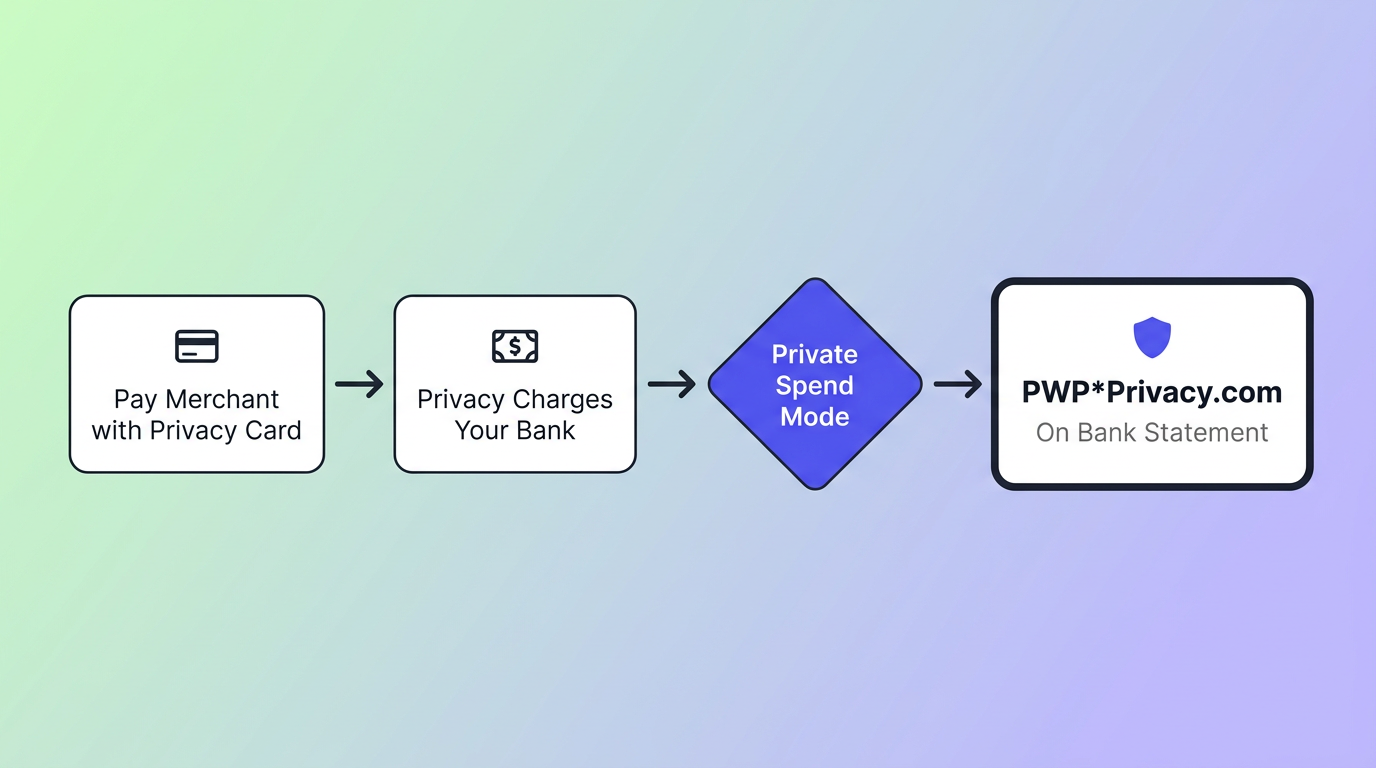
The result: your bank or credit card statement shows a charge from "PWP*Privacy.com" with no indication of the underlying merchant. If anyone looks at your statement, they will only see that you made a payment through Privacy.com, hiding OnlyFans from your bank statement completely.
How to Set Up a Privacy Virtual Card with Private Spend Mode
Setting up takes a few minutes. Here’s how to do it from start to finish:
- Create a Privacy account at privacy.com. You will need to verify your identity (standard banking procedure and then link a funding source–either a bank account (via ACH) or a debit card.
- Turn on Private Spend Mode. Go to your Account page, find the Funding Sources section, and toggle "include merchant information" off. This enables Private Spend Mode across your account, so all future charges appear as "PWP*Privacy.com" on your bank statement.
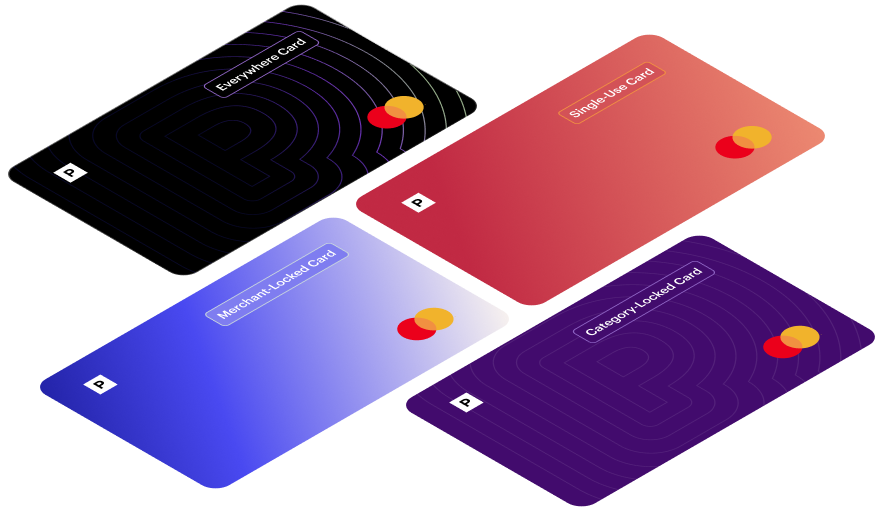
- Generate a new virtual card. From your dashboard or the Privacy app, create a new card. For an ongoing OnlyFans subscription, a merchant-locked card is the best option–it locks to the first merchant that charges it, so the card can’t be used anywhere else.
- Set your spending limit. Decide the maximum you want to allow per month or per transaction. If OnlyFans tries to charge more than your set amount, the transaction is automatically declined. You can adjust the limit at any time.
- Add the virtual card to OnlyFans. Enter the card number, expiration date, and CVV on OnlyFans' payment page, just like any other card. OnlyFans processes it as a standard card payment.
From that point forward (or until you turn Private Spend Mode off), all charges made on your Privacy Cards will show up as "PWP*Privacy.com" on your bank statement. Meaning, you’ve effectively hidden OnlyFans from your bank statement. Detailed merchant information will still be reported inside of your Privacy account under your transaction history.
Spending Controls Beyond Statement Privacy
Beyond hiding the merchant name on your bank statement, Privacy virtual cards give you direct control over charges:
- Spending limits. Set a per-transaction or monthly cap on any card. Charges that exceed your limit are automatically declined. This is useful for subscription services where the amount might change if you follow new creators or send tips.
- Merchant locking. Cards lock to the first merchant that charges them. A card locked to OnlyFans can’t be used anywhere else. If the card number is ever compromised, it’s useless at any other merchant.
- Pause and close. Pause a card to temporarily stop all charges, or close it permanently. Closing the card ensures no future charges come through, even if you forget to cancel on the merchant’s end.
Frequently Asked Questions
Does OnlyFans show up on your bank statement?
OnlyFans charges appear directly as "ONLYFANS.COM" (with various letter suffixes) or "CCBill.com *OnlyFans" on bank statements. To hide OnlyFans on your bank statement, use a Privacy virtual card with Private Spend Mode enabled—this replaces the descriptor with "PWP*Privacy.com."
Do OnlyFans creators' names show up on your bank statement?
No. OnlyFans doesn't display a creator's name on statements. Instead, charges appear with a generic descriptor containing "OnlyFans," with no creator-specific identifiers. However, the word "OnlyFans" itself still appears, which is what Private Spend Mode is designed to address.
What is Private Spend Mode?
Private Spend Mode is an account-level setting in Privacy.com that removes the merchant name from your bank statement. When enabled, all Privacy virtual card charges appear as "PWP*Privacy.com" instead of "PWP*{merchant name}." You can turn it on from your Account page by toggling "Include merchant information" off under Funding Sources.
Does a Privacy virtual card hide the merchant name by default?
No. By default, Privacy includes the merchant name in the bank statement descriptor (e.g., "PWP*ONLYFANS.COM"). You need to turn on Private Spend Mode to remove the merchant name. Without it, "ONLYFANS.COM" would still be visible on your statement through Privacy.
Can I hide a specific transaction that already appeared on my bank statement?
No. Once a transaction posts to your bank statement, it cannot be removed, hidden, or renamed. Banks are required to maintain complete records. Private Spend Mode prevents the merchant name from appearing in the first place, so it needs to be enabled before the transaction occurs.
Do Apple Pay or Google Pay hide merchant names on your bank statement?
No. Apple Pay and Google Pay pass through the original merchant name to your bank statement. These are payment methods, not privacy tools.
Can I use a prepaid Visa gift card to keep OnlyFans off my statement?
A prepaid gift card does keep the charge off your bank statement since the merchant charges the gift card. However, gift cards have activation fees ($3–$6), limited balances, can’t be reloaded, and don’t offer spending controls. A Privacy virtual card with Private Spend Mode is reusable, free to create, and gives you spending limits and merchant locking.
What does a Privacy virtual card charge look like on my bank statement?
With Private Spend Mode enabled, all charges appear as "PWP*Privacy.com" on your bank statement. Without it, charges appear as "PWP*{merchant name}" (e.g., "PWP*ONLYFANS.COM").
Does this work for other merchants besides OnlyFans?
Yes. While this article focuses on how to hide OnlyFans from your bank statement, Private Spend Mode applies to all Privacy virtual card transactions. Whether you want to hide transactions on your bank statement from subscription services, health providers, or any other merchant, the process is the same—your bank would see "PWP*Privacy.com" and the merchant details stay in your Privacy account.
Is using a virtual card to hide purchases on my bank statement legal?
Yes. Virtual cards are a legitimate financial product. Using one to manage which merchant names appear on your bank statement is no different from using a separate credit card for certain categories of spending. You’re choosing a payment method that gives you more control over your credit card purchases and how they appear.